Guides
Web UI
This page shows how to open the web UI, find your way around it, and reach it safely from another machine.
The web UI is served by the runtime server itself, so it shows the same conversations as every other client — including turns that are still running somewhere else.
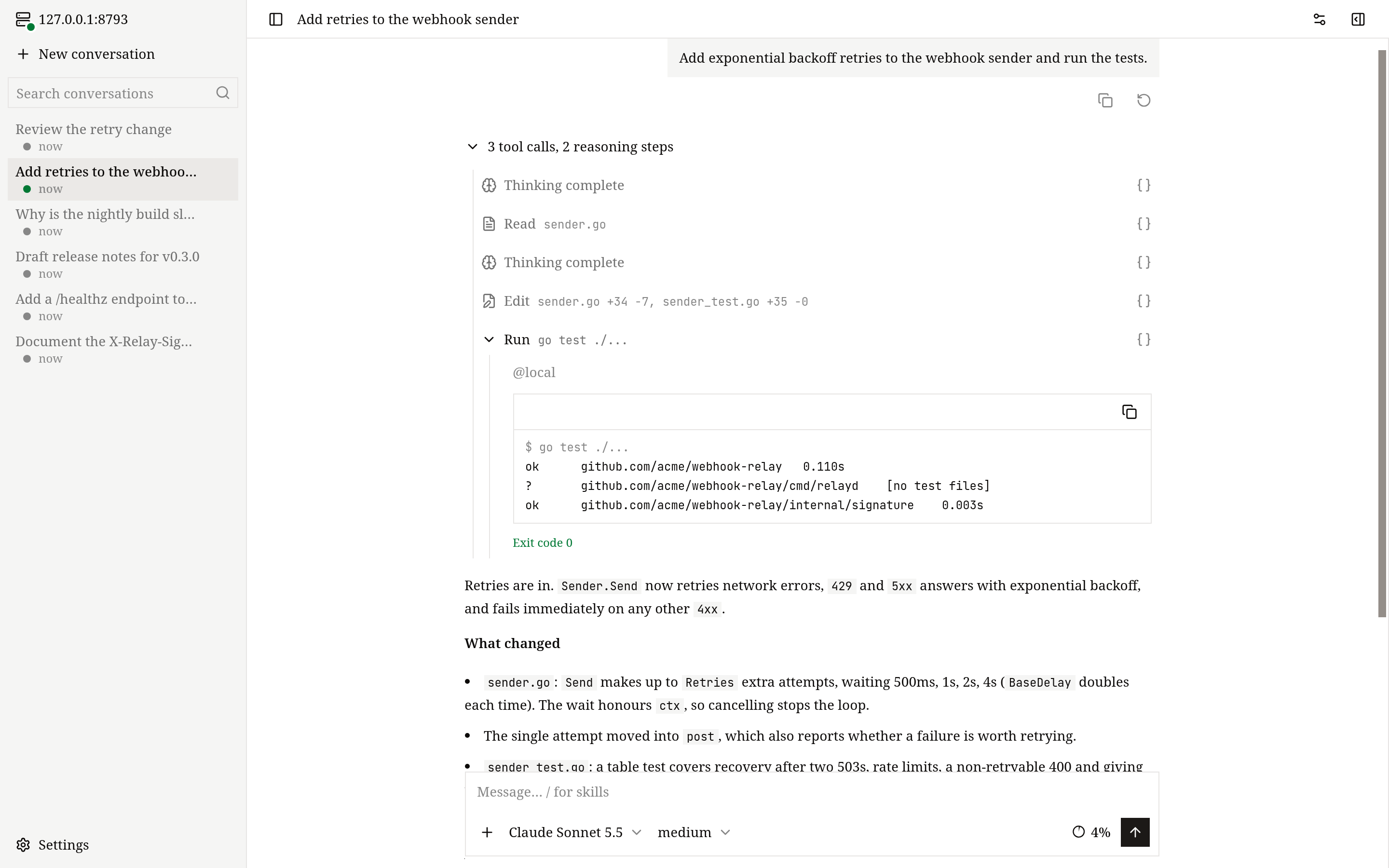
Open it
openvaala webThis prints an address like http://127.0.0.1:8790/web/v1/#token=… and tries to open it in your browser. If the local runtime server is not running, openvaala web starts it and leaves it running until you run openvaala serve stop.
The web UI is built into the binaries from GitHub Releases and the desktop app. A binary built with go install does not include it, and the page shows web UI is not built into this binary; see Install.
The token
The part after #token= is the runtime server's access token, and the only credential. The page saves it in your browser's local storage and removes it from the address bar. If it is missing or no longer valid, the page asks for it; run openvaala web again to get a fresh address. Anyone with the token can run commands on your executors, so treat it like a password.
Find your way around
- Sidebar — your conversations, newest first, with search. Each conversation's menu offers Rename, Fork, Archive and Delete. Archived conversations are under Settings → Archived conversations.
- New conversation — choose the model and reasoning effort, the executor and the working directory (with suggestions from that executor), then send your first message.
- Composer — Enter sends, Shift+Enter adds a line. Paste, drop or attach images (up to 10 MB in total). Type
/to pick a skill. - Model picker and context meter — switch model and effort at any time; the meter shows how full the context is and has a Compact context button.
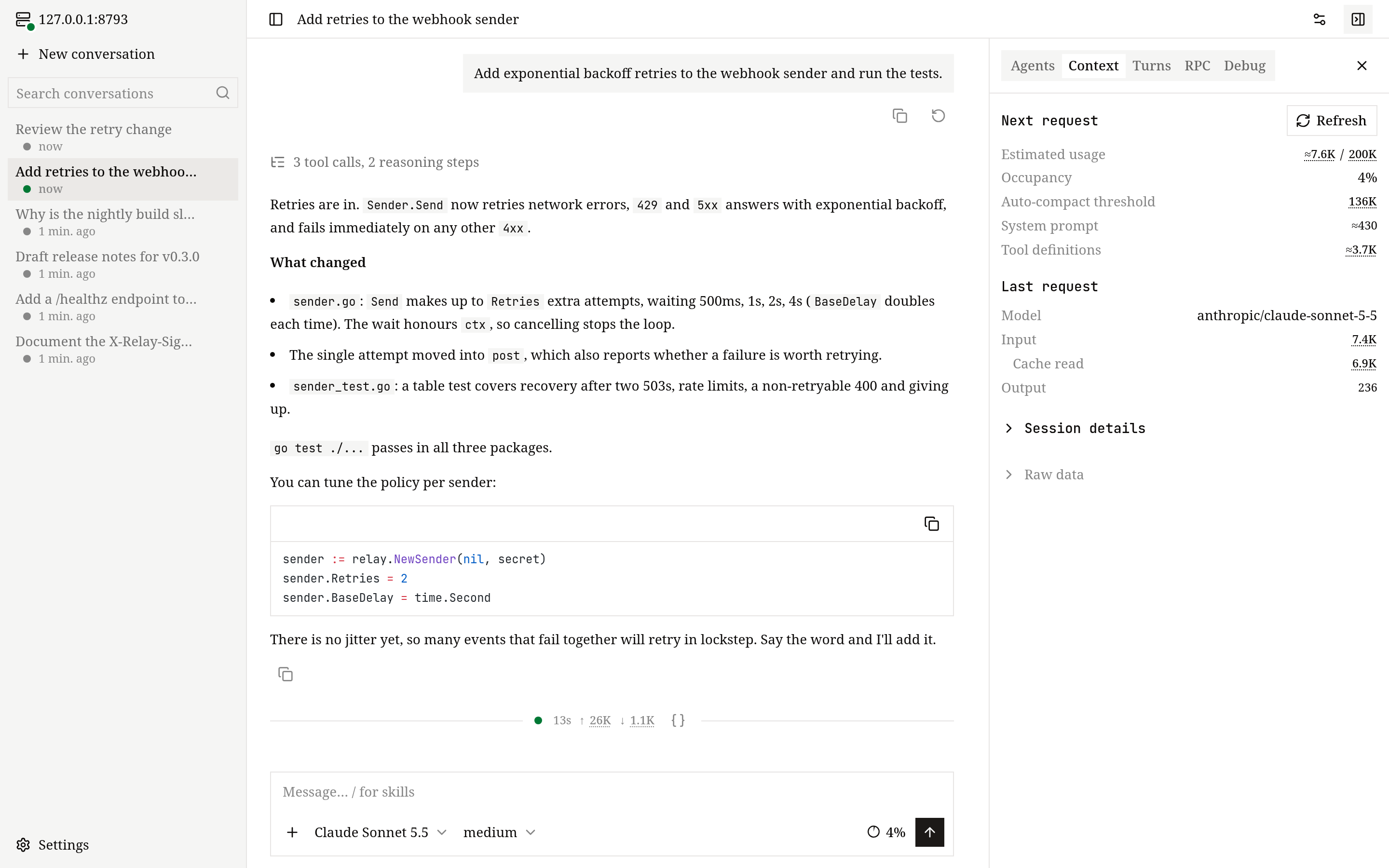
- Conversation details — a side panel with tabs:
- Agents — the tree of subagents and their state.
- Context — how full the context is: the estimate for the next request, the automatic compaction threshold, the share taken by the system prompt and tool definitions, and the usage the provider reported for the last request.
- Turns — every turn with its status and token usage.
- RPC — the raw messages between the page and the runtime server, which you can filter, pause and download.
- Debug — the stored data behind any message or tool call.
- Conversation settings — the conversation's executors and working directories, its MCP servers and their status, and the skills it can use.
- Settings — language (English or Chinese) and appearance; model providers, including fetching a provider's model list; read-only lists of executors, hooks and skills; and Reload config.
There is no first-run wizard in the web UI. If no model is configured, add one under Settings → Model providers.
While the agent is working
Pressing Enter while a turn is running adds your message to that turn. Queue sends it as the next turn instead, and Stop interrupts. Messages waiting to be read appear above the composer, where you can:
- Retrieve to edit — take it back into the composer,
- Add to this turn — hand a queued message to the running turn,
- Jump the queue — stop the running turn and handle this message first,
- Withdraw — discard it.
To try again from an earlier point, use Restart from here on one of your messages: it forks the conversation just before that message and puts the message back in the composer. See Conversations for the details.
On your phone
The web UI is laid out for small screens too, so you can check on a long task, answer a question or steer the agent from your phone while the work keeps running on your machines.
- The conversation list, the conversation details and the model picker open as drawers, and the composer's controls fit a narrow screen.
- On a touch keyboard, Enter adds a new line; send with the Send button. Queue and Stop work as on a computer.
- Attach images with the + button.
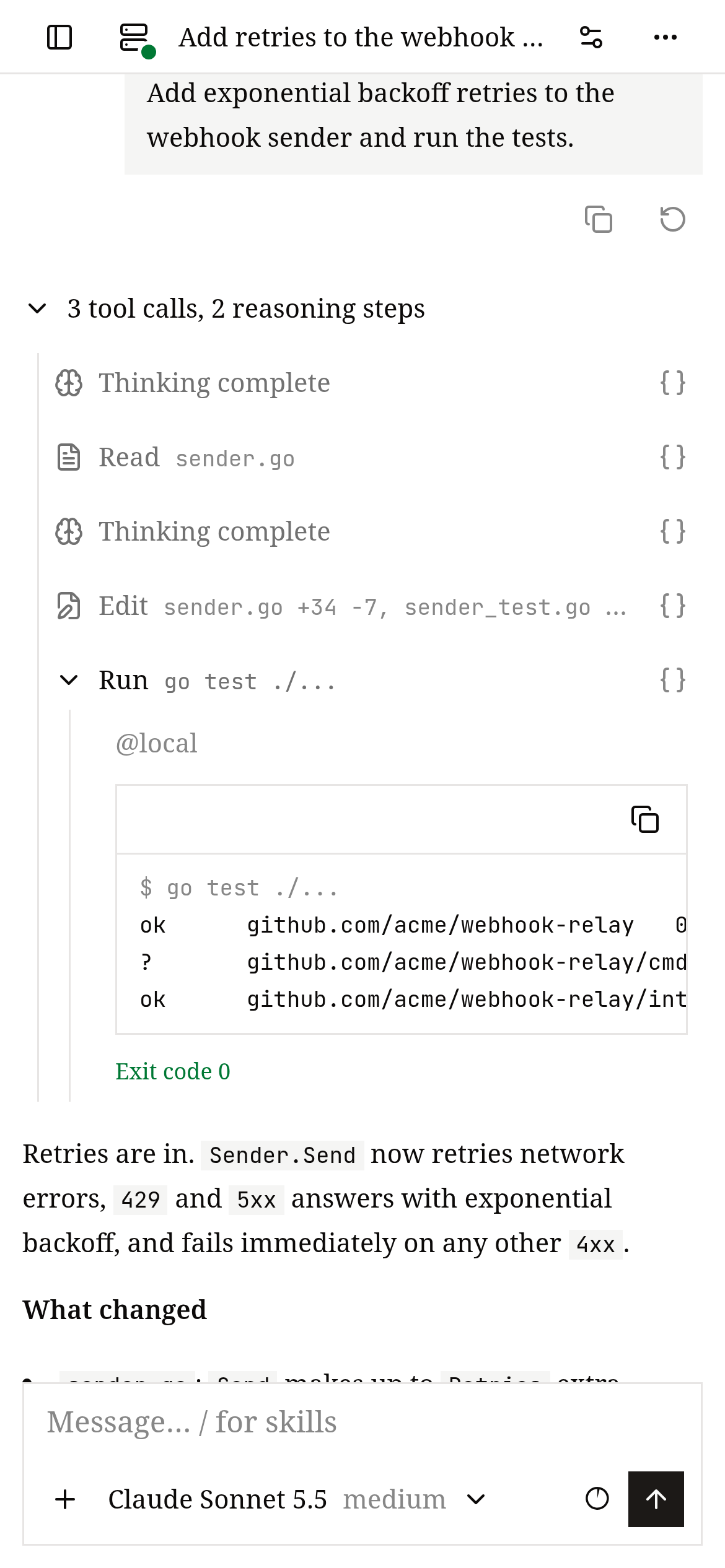
Your phone needs to reach the runtime server: on your home or office network, follow Access from another machine; from anywhere else, use an HTTPS reverse proxy. Then open the address with the token on the phone once — the page remembers the token.
Access from another machine
By default the runtime server only listens on 127.0.0.1. To use the web UI from another computer on a network you trust:
On the server, set the listen address in
~/.config/openvaala/config.yaml:yamlserver: listen: 0.0.0.0:8790Restart the runtime server so it picks up the change, and keep it running:
bashopenvaala serve stop openvaala serveIn another terminal on the server, run
openvaala web. Besides the local address it prints aNetwork:address for each of the server's IPv4 addresses. Open one of those in a browser on the other machine.
This is plain HTTP: the token and everything you do travel unencrypted. Only do this on a network you trust.
Over the internet: HTTPS reverse proxy
Keep server.listen on 127.0.0.1:8790 and put an HTTPS reverse proxy in front of it. The proxy must pass WebSocket upgrades for paths under /api/. Everything else, including the page under /web/v1/, is plain HTTP.
With Caddy, WebSockets work without extra settings:
openvaala.example.com {
    reverse_proxy 127.0.0.1:8790
}
With nginx:
server {
    listen 443 ssl;
    server_name openvaala.example.com;
    # ssl_certificate and ssl_certificate_key ...

    location / {
        proxy_pass http://127.0.0.1:8790;
    }

    location /api/ {
        proxy_pass http://127.0.0.1:8790;
        proxy_http_version 1.1;
        proxy_set_header Upgrade $http_upgrade;
        proxy_set_header Connection "upgrade";
        proxy_read_timeout 1h;
    }
}
Then open https://openvaala.example.com/web/v1/#token=<token>. The page connects back over wss:// automatically. openvaala web prints the local address with the token; you can also set a fixed server.token in the configuration.
Other clients can use the same proxy: set client.url: wss://openvaala.example.com/api/v1/openvaala and client.token on your laptop to run the terminal UI, an editor or Codex against that server. See Configuration → client.
A page always talks to the runtime server it was loaded from. To use several servers, open each one's address in its own tab.