Guides
Terminal UI
This page shows how to work with OpenVaala in a terminal: starting a conversation, steering it while it runs, and the commands and keys available.
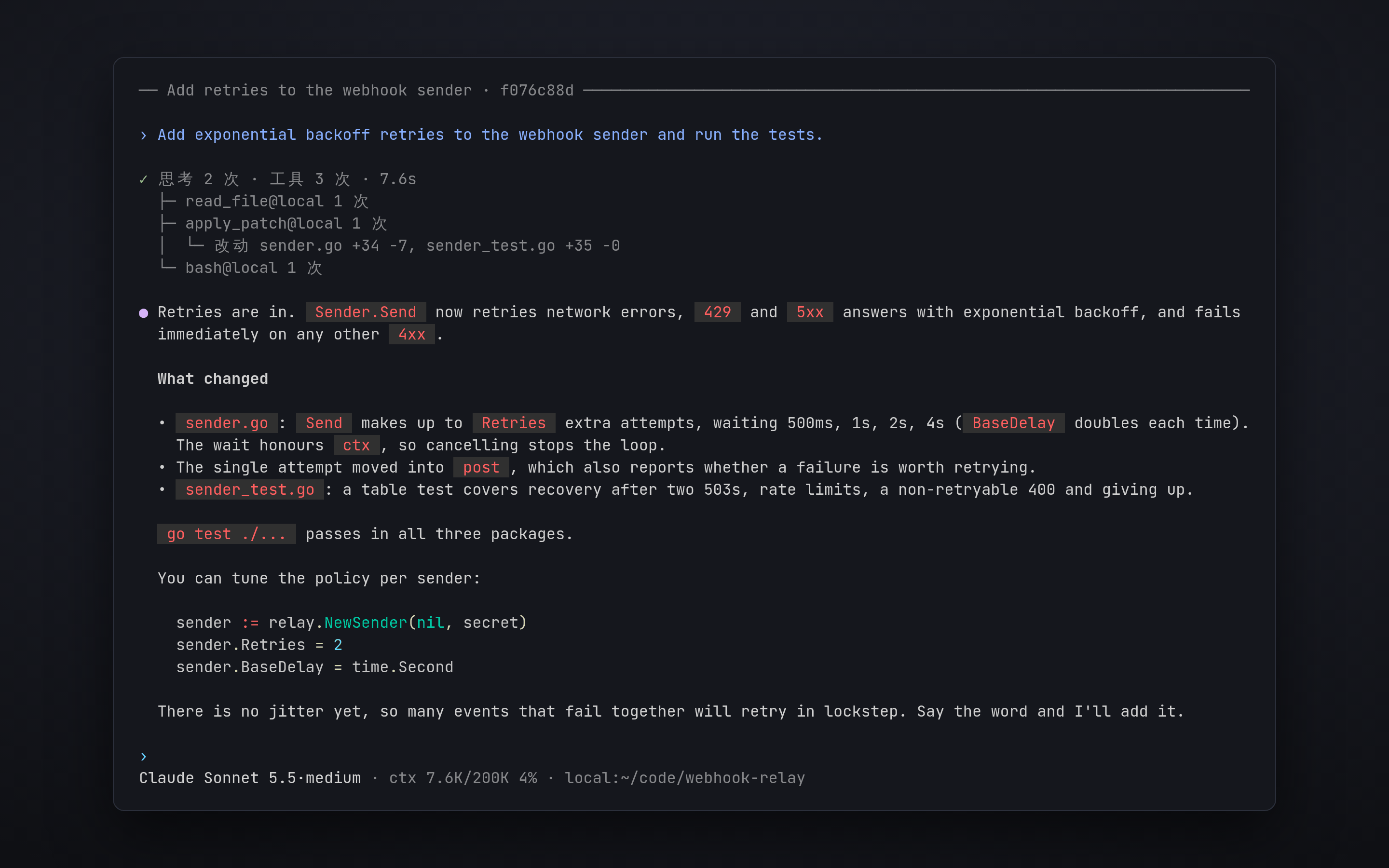
Start
Run openvaala in the directory you want to work in:
cd ~/code/my-project
openvaala
The terminal UI connects to the local runtime server, starting it in the background if needed, and opens a new conversation whose working directory is the current directory. Nothing is created until you send the first message. To work against a runtime server on another machine, see Connect to another machine.
On the first run, when no model is configured, the terminal UI opens the provider setup:
- Choose a service from the catalog, or custom for any compatible endpoint.
- Check the id, protocol and base URL, and enter your API key.
- Choose the models you want. For catalog services the list comes from the catalog; for custom endpoints it is fetched from the provider's
/models, or you can type model ids. - Choose the default model.
The provider is saved as ~/.config/openvaala/models/<id>.yaml and can be changed later with /provider. See Models.
NOTE
The terminal UI's labels are currently in Chinese. The web UI and the desktop app are available in English.
Talk to the agent
Type a message and press Enter. Shift+Enter or Ctrl+J inserts a new line. ↑ and ↓ browse what you sent before. Long pastes are collapsed into a placeholder and expanded when you send.
While the agent is working you can keep typing:
- Enter adds your message to the turn in progress; the agent reads it at its next step. Use this to correct course without stopping.
- Tab queues your message as the next turn instead.
- Esc twice interrupts the running turn. Anything already generated is kept.
- Ctrl+C clears the composer; with an empty composer it interrupts a running turn, or, pressed twice when idle, quits.
See Queued input and steering for how these interact.
Type / to see commands and skills. Choosing a skill inserts /<skill> into your message, so the agent follows that skill for this request.
Commands
| Command | What it does |
|---|---|
/new | Start a new conversation. |
/resume | Open one of the 20 most recent conversations. Tab shows archived ones; Ctrl+A archives, Ctrl+D pressed twice deletes. |
/fork | Copy the current conversation into a new one and continue there. |
/rewind | Pick an earlier message; a new conversation is forked from just before it, with the message back in the composer. |
/model | Choose the model and reasoning effort for this conversation. |
/provider | Add, edit or remove model providers and set the default model. |
/reload | Reload configuration in the runtime server. |
/context | Show what is in the context and how much of the window it uses. |
/compact | Summarize the conversation now to free context. |
/cd <dir> | Change the default executor's working directory. |
/executor | Choose the default executor (Enter) and which executors are available (Space). |
/expand | Full-screen view of the conversation with every detail (Ctrl+O). |
/agents | The tree of subagents and their status. |
/status | Conversation details. Press t to show the runtime server's address with its token. |
/mcp | MCP servers and their connection status. |
/help | Commands and keys (? with an empty composer). |
/quit | Quit (Ctrl+D with an empty composer). |
Esc twice with an empty composer, when nothing is running, opens /rewind.
Images
The terminal UI sends text only. To give the agent an image, ask it to read the file with read_file, or use the web UI or desktop app, which accept pasted and attached images.
Leave and come back
Quitting the terminal UI does not stop a running turn; it finishes in the runtime server. Use /resume to pick it up again here, or open it in the web UI. A runtime server that the terminal UI started on its own exits about ten seconds after its last client disconnects, once nothing is running.
Connect to another machine
To use a runtime server elsewhere, pass --url or set client.url and client.token:
openvaala --url 'ws://10.0.0.5:8790/api/v1/openvaala?token=...'If your project is at a different path on the server, add a client.path_mappings entry so new conversations start in the right directory there. Without a mapping, they start in the server's server.workspace_directory. Use /cd to change it afterwards.